
Support
Getting Started
Click on any step or subsection to see support materials and media.

Farm / Operation Details
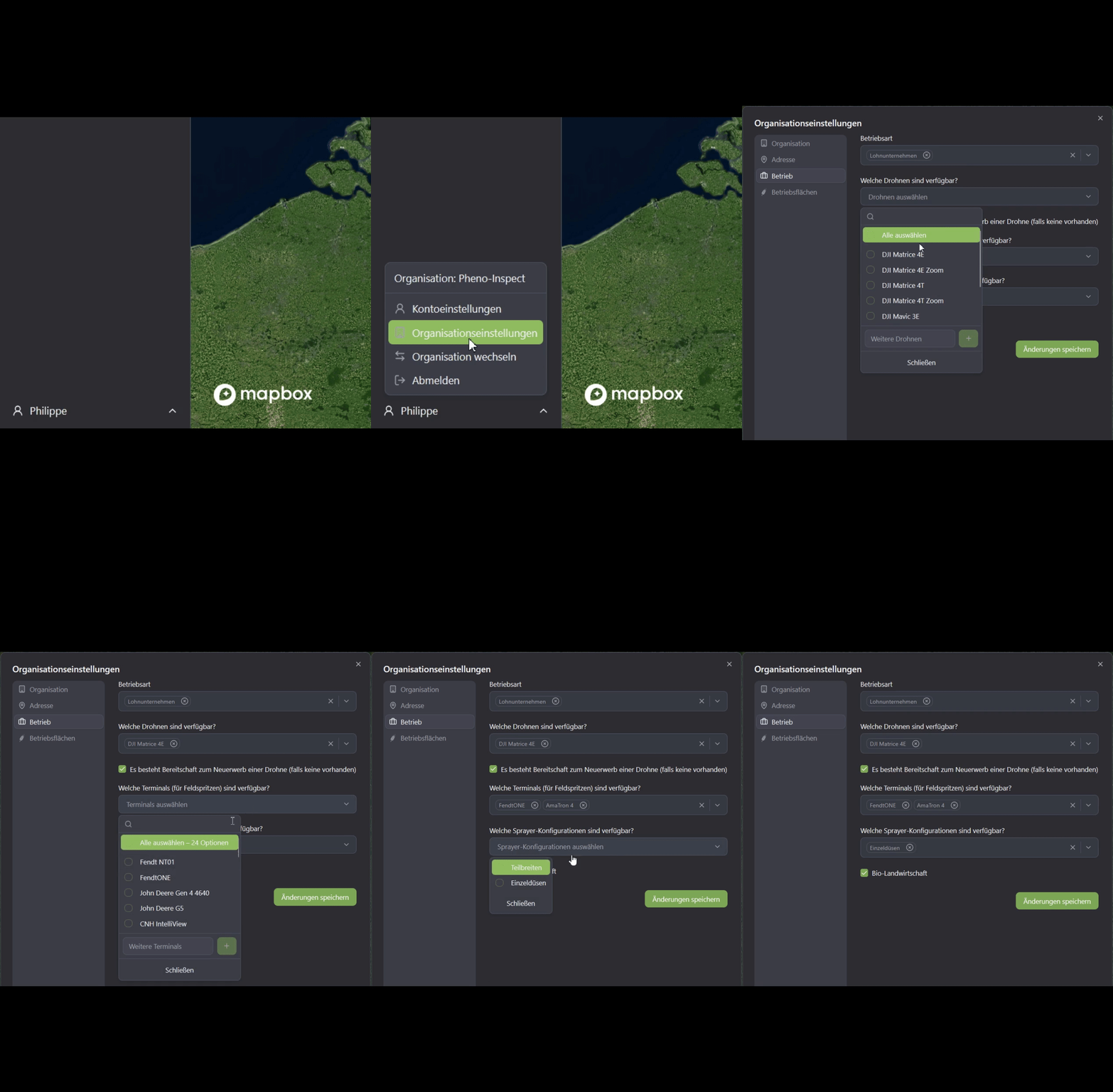
Complete your farm's information by clicking on your name in the bottom left corner and then on "Organization Settings."
Under "Farm," you can provide us with information about your farm. In addition to the type of farm, you can also specify the drones you already own. If you don't yet own a drone but would like advice on purchasing one, you can also let us know here.
Specifying the available terminals for the sprayers, as well as available sprayer configurations, allows us to automate the subsequent export process of the application maps in the background, thus simplifying your workflow.
Create Your First Site
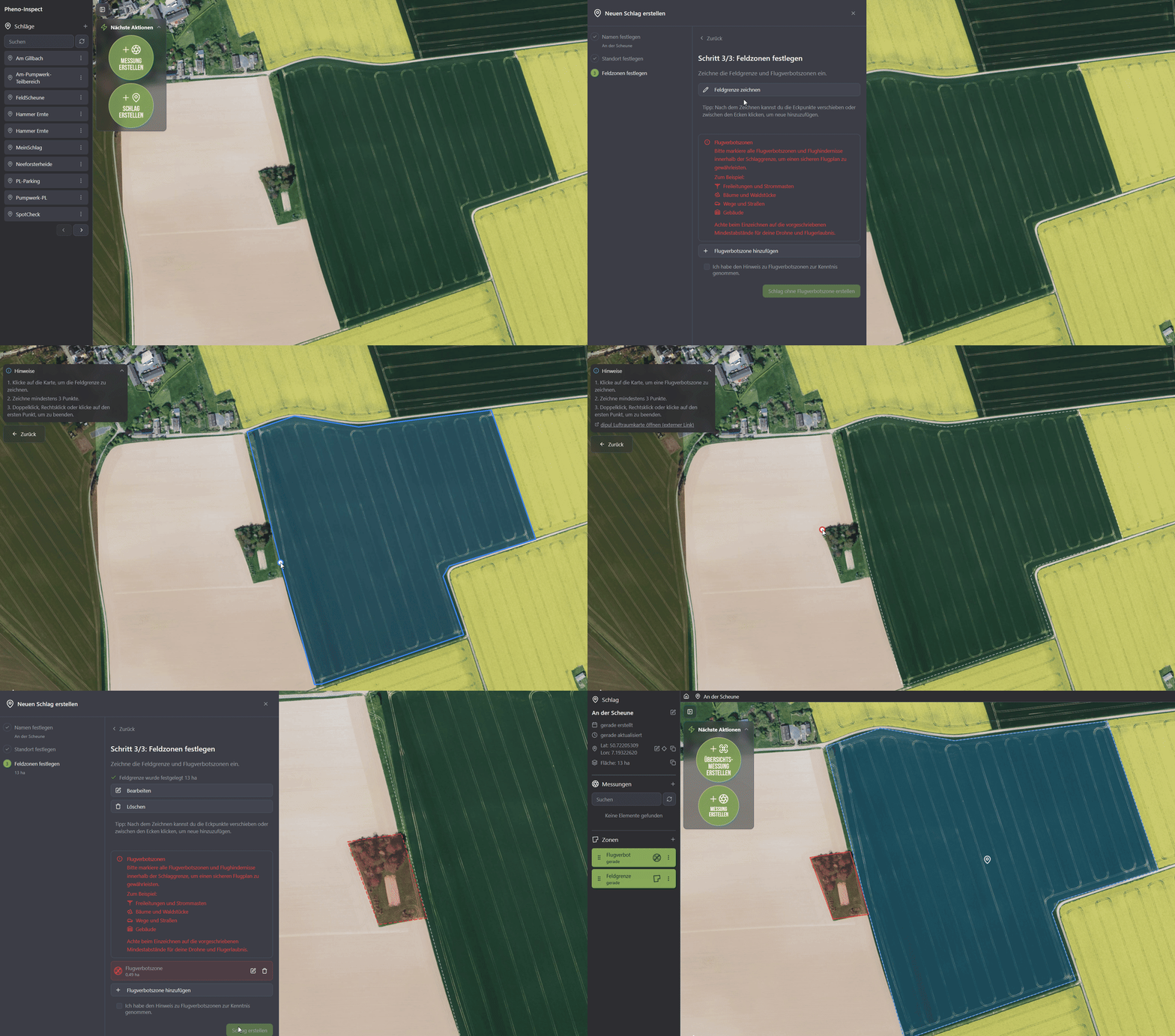
Before creating your first flight mission, first set up a field/plot. To do this, simply click the "Create Field" button and then enter the name of the field. Click "Next" and define the field's location on the map. This can be done manually on the map or automatically via "Use My Location." In the final step, you can draw the field boundaries.
Additionally, you can add no-fly zones that will be automatically taken into account and flown around during the flight. To do this, click the "+" icon and select "No-Fly Zone."
Create Your First Survey
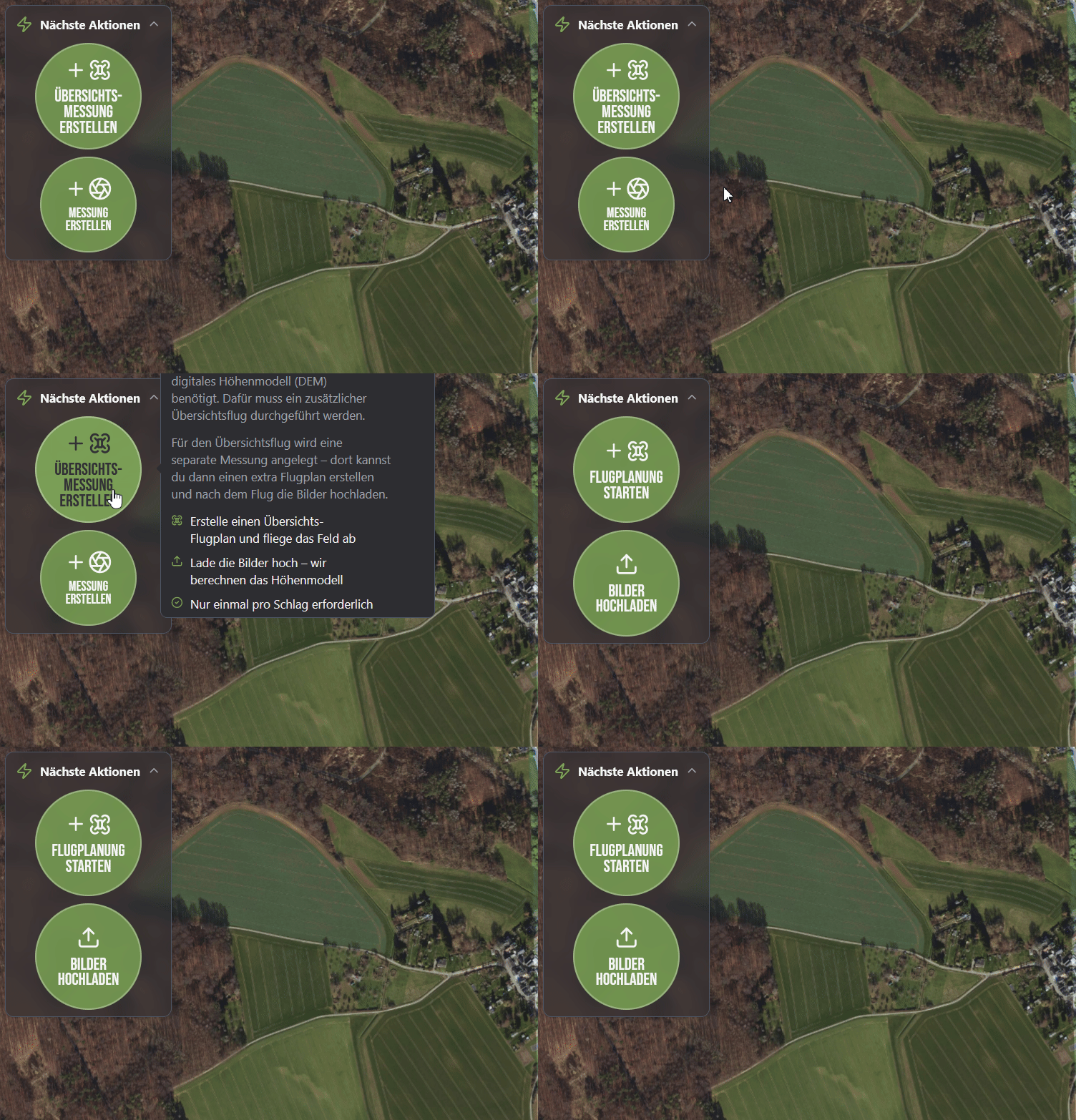
Once you have created your first field/plot, you can automatically create an overview measurement via the "Create Overview Measurement" button.
Alternatively, you can select the "Overview Flight" protocol via "Create Measurement." Additional flight protocols will be unlocked once the first overview flight has been created and successfully completed.
Setting Up the RTK Connection
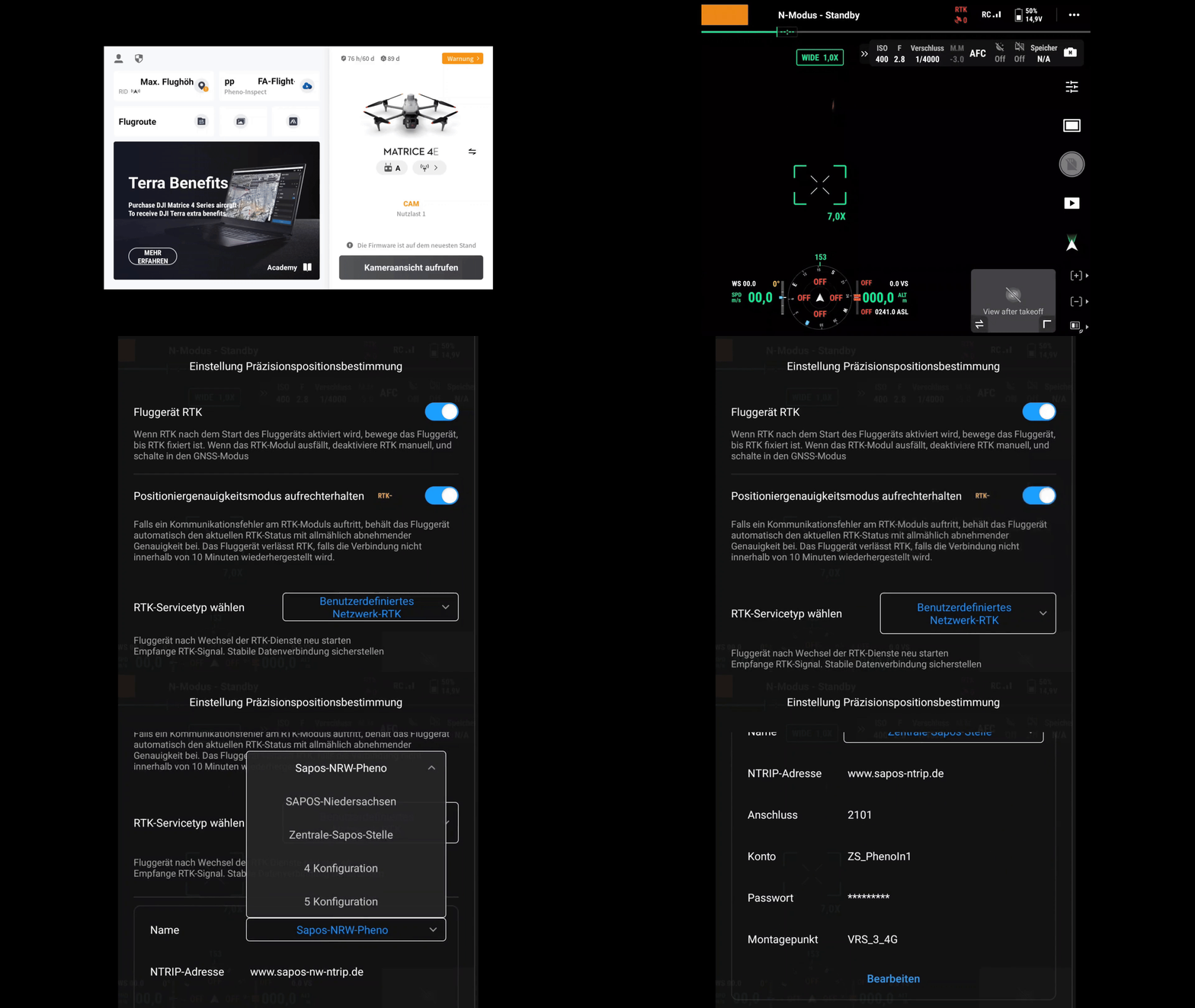
For smooth use of our flight planning, the drone must have a working RTK connection. For this, you need access credentials from a VRS provider (Virtual Reference System), such as SAPOS.
Request access credentials from SAPOS: Visit the SAPOS central office at https://zentrale-stelle-sapos.de/gebuehren-anmeldung/ and submit the completed registration form. Select the "HEPS" service.
Once you have received your access credentials, they must be entered into the drone. To do this, start your drone and connect it to the controller. Then open the camera view by launching the DJI Pilot 2 app and tapping "Enter Camera View."
Next, tap the three dots in the top right to open the flight settings. Then tap the satellite icon on the right side. This opens the precision positioning settings.
Make sure the options "Aircraft RTK" and "Maintain Positioning Accuracy" are enabled. Select "Custom Network RTK" as the RTK service type. Edit or create a new RTK connection using the access credentials provided by the SAPOS service.
SprayerCheck™ – Check Functionality Before Use
Ensure that your crop protection equipment is working correctly with application maps.
To do this, place red cones in the field and capture the area using a drone. Create an application map in FarmAnalyzer™ and drive the route using water.
The markers will show you whether:
-
all target areas are being hit
-
the application is being carried out correctly
This allows you to verify the entire workflow—from data acquisition to application—under real-world conditions.
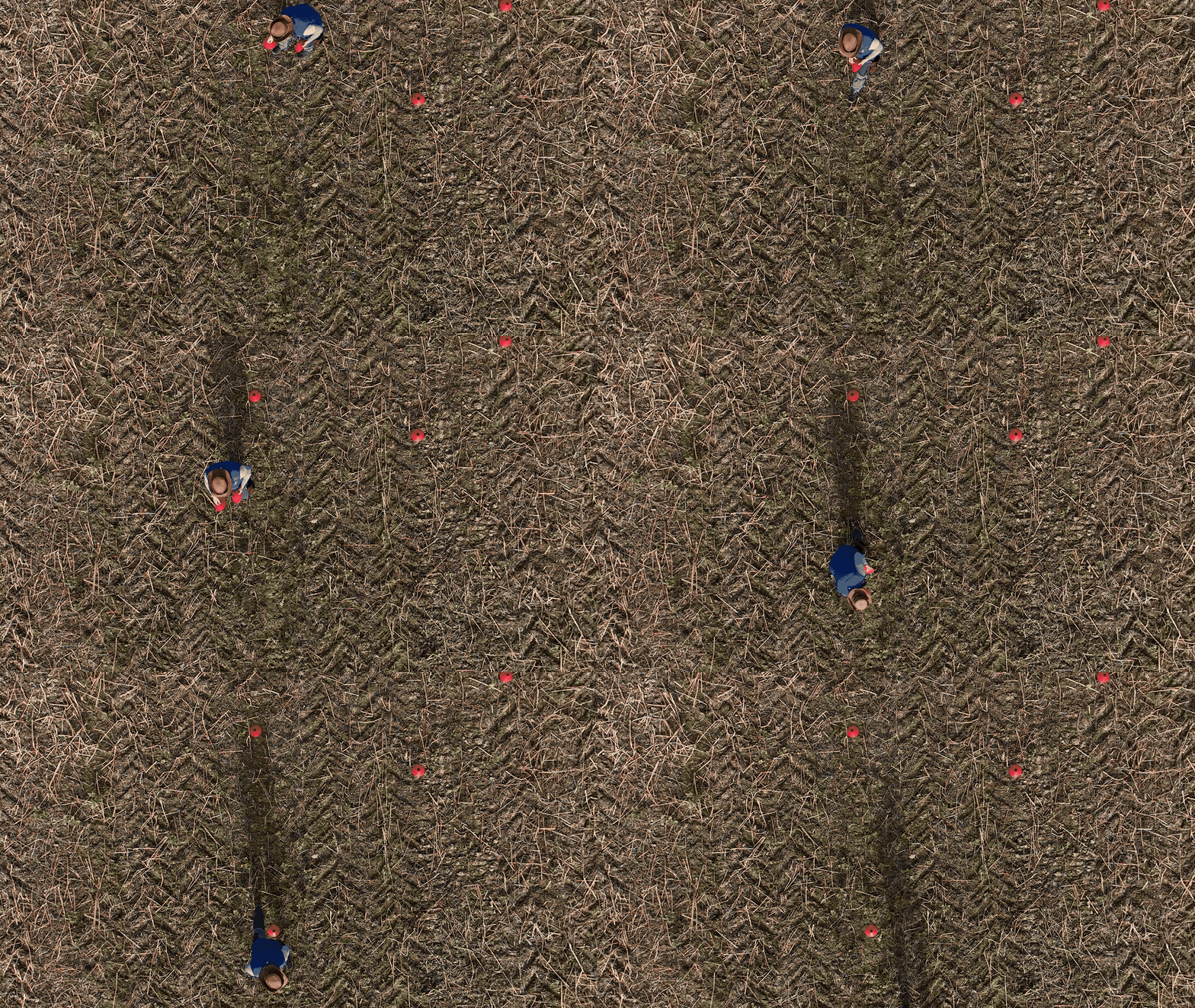
Set up the test area as a separate field:
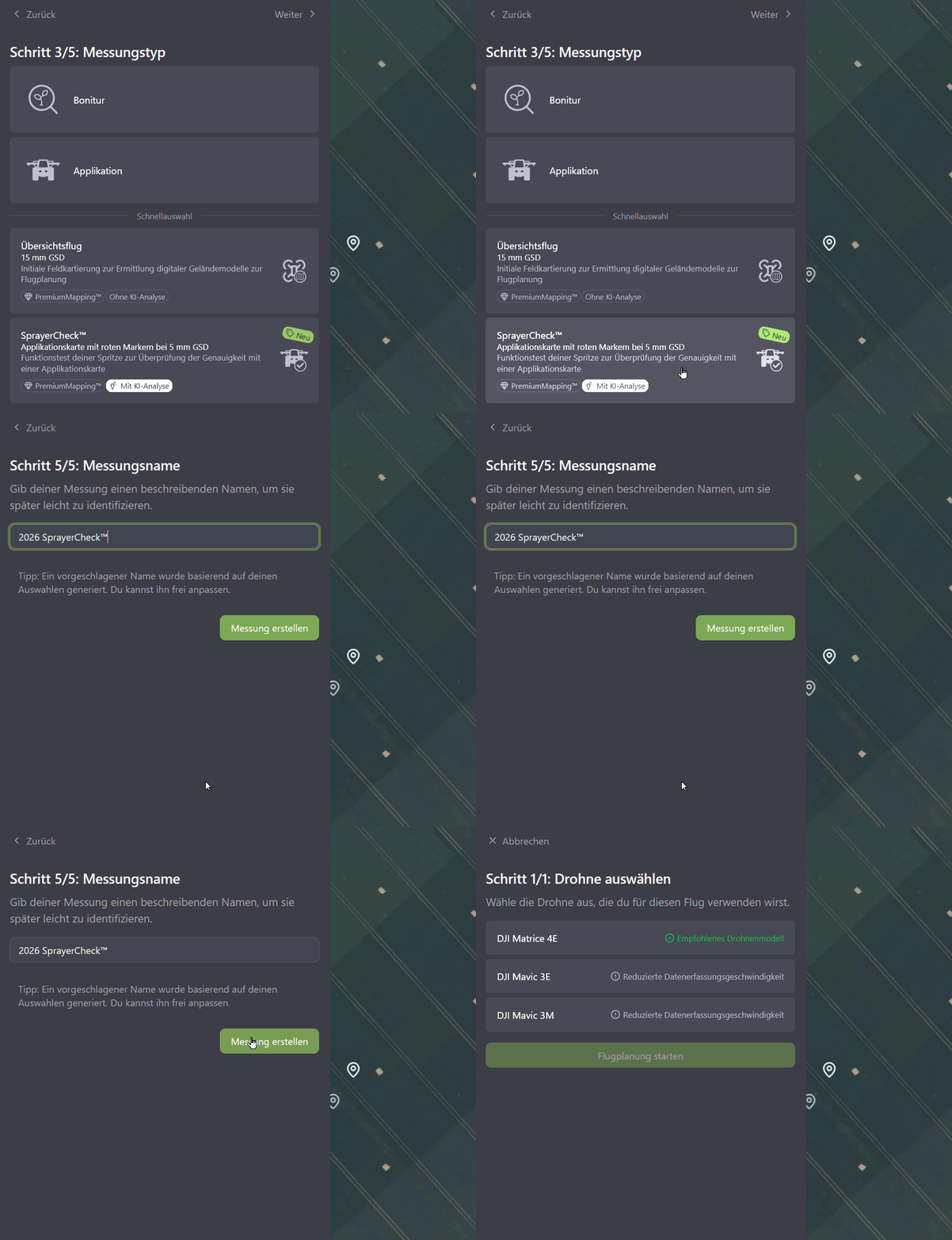
Click "Create Field" and assign a name.
Select the location on the map.
Draw the field boundary for the SprayerCheck™ area.
Next, create a measurement:
-
Click "Create Measurement."
-
Under "Measurement Type," select "SprayerCheck™."
Note: No elevation model is required for SprayerCheck™. The flight plan can be calculated and flown immediately.
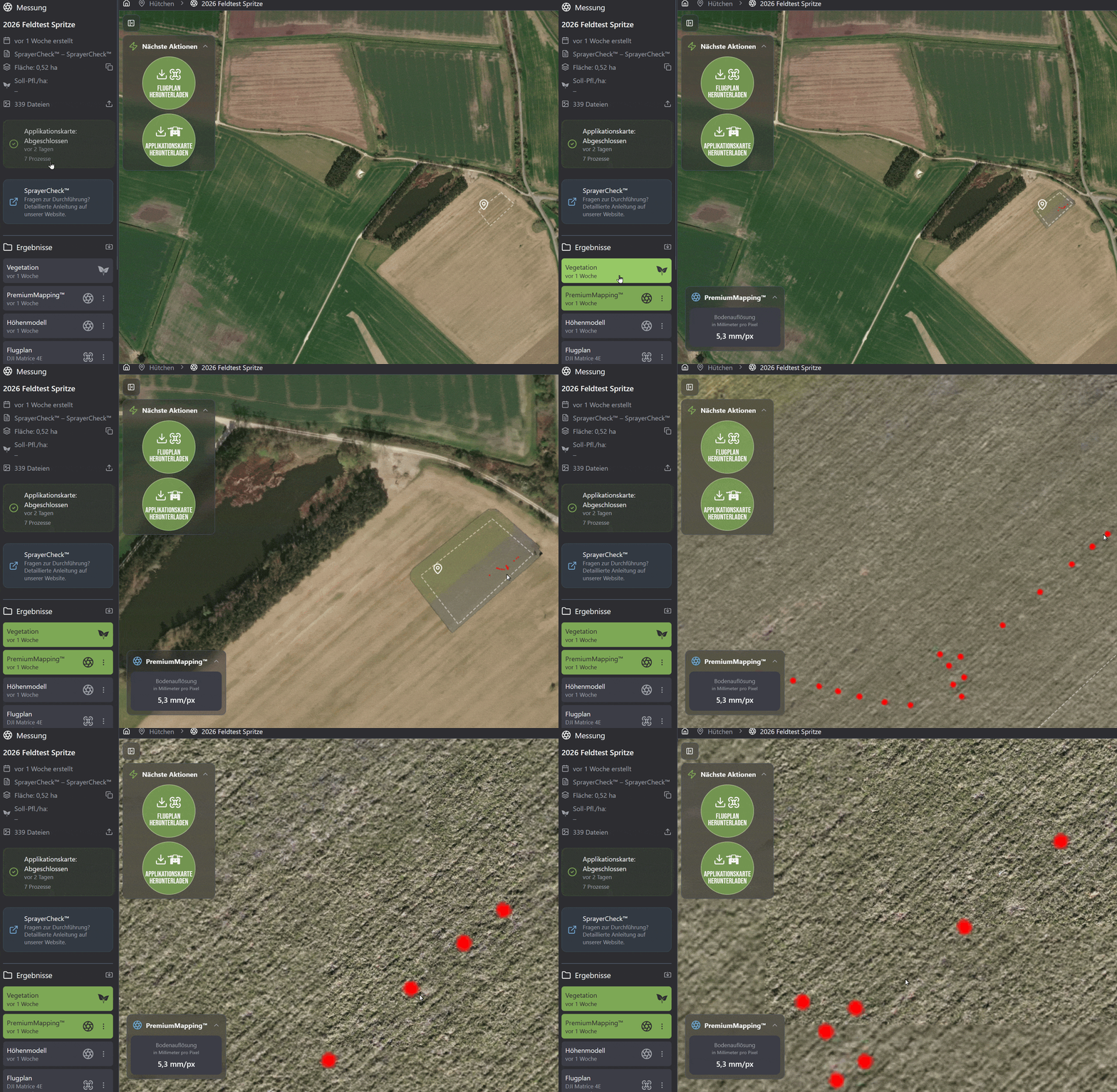
Check AI Detection in FarmAnalyzer™
After uploading and processing, the red cones are automatically detected.
Here is how to verify the results:
-
Select the corresponding measurement.
-
Under "Results," select the "Vegetation" layer and the PremiumMapping™ layer.
-
Verify that all cones have been correctly detected.
Next, create three application maps using different buffer settings:
-
Treatment buffer: 1 m, 0.5 m, and 0.25 m (separately for each)
-
Minimum area diameter: 10 cm
-
Edge buffer: 0 m
Finally, export the generated application maps.
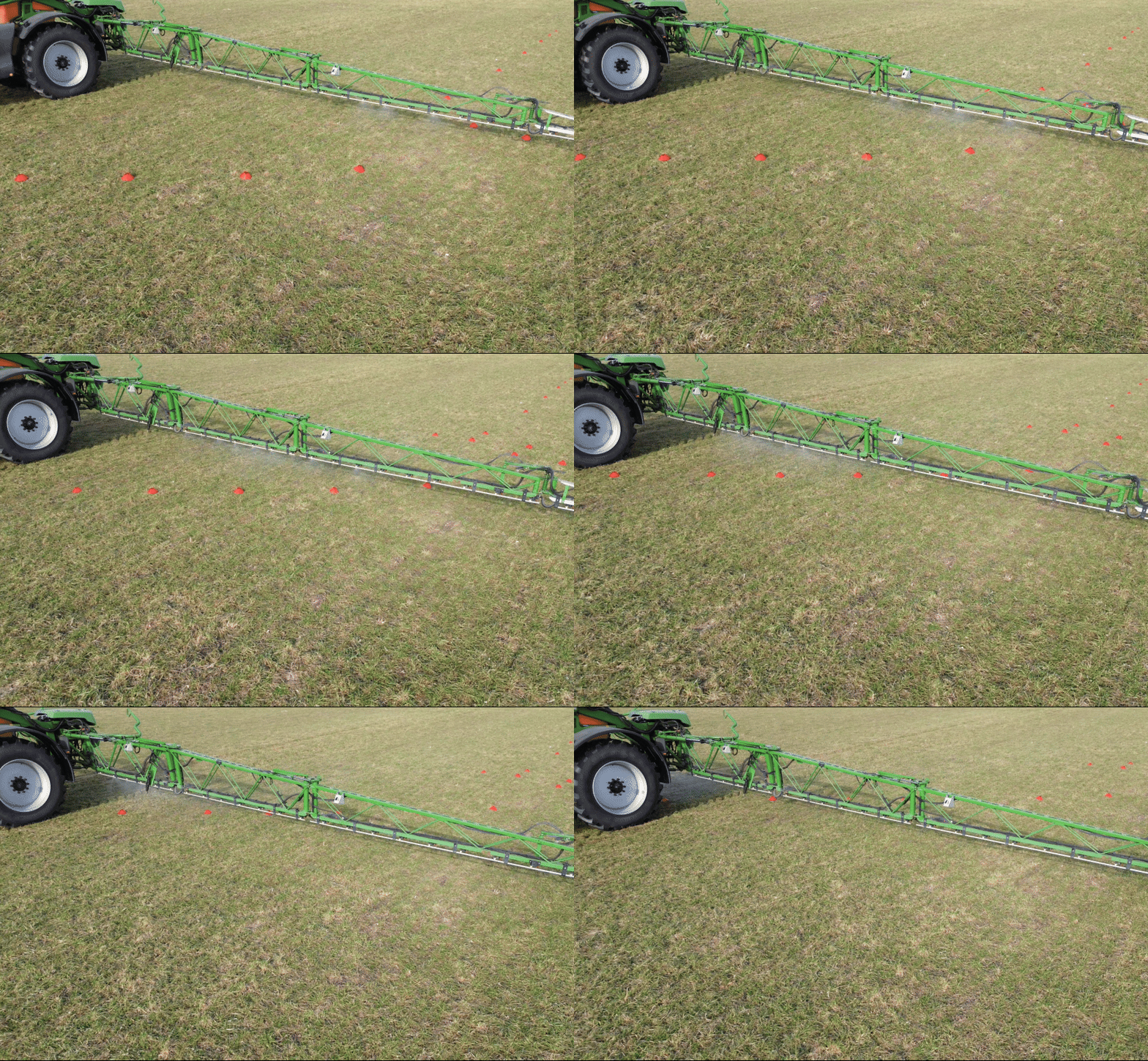
Verify results in the field.
Run through the application map using water and verify in the field:
-
Are the pylons being hit in a timely manner?
-
Are the pylons being sprayed over their entire surface area?
Should any delays or incorrect switching behavior be observed, we recommend checking and, if necessary, adjusting the following parameters:
-
Pressure control (Automatic vs. Manual)
-
Nozzle configuration
-
Switch-on and switch-off times
-
Section Control overlap settings
If needed, contact the manufacturer of your field sprayer or terminal to correctly configure these settings. Alternatively, please reach out to us at support@phenoinspect.de.
Frequently asked questions
.avif)