
Support
Step 3: Analyze
Click on any step or subsection to see support materials and media.

Activate FarmAnalyzer™ PRO
Activate your FarmAnalyzer™ PRO account to utilize automated AI analyses and application maps.
With the annual subscription, you gain direct access to all PRO features for field analysis and precision application maps.
The annual fee of €50 is credited to you in full as a balance toward your initial analyses.

Digital Assessment
With the SpotCheck™ analysis, you can automatically evaluate entire fields using approximately 10 images per hectare.
Once the analysis is complete:
-
Open the "Vegetation" layer on the left to view detected crops and weeds.
-
Switch to "Assessment" to evaluate the key metrics.
Four key metrics are displayed:
-
Plant Density
-
Gaps in Stand
-
Weed Pressure
-
Row Closure
You can individually adjust the target ranges for each metric.
Plant Density – How many plants are present?
Shows you how well your crop stand has emerged.
FarmAnalyzer™ compares the actual plant count against your target value.
By setting a target value, you can immediately identify which areas fall below the goal and where deviations occur.

Crop Gaps – Where Are Plants Missing?
Automatically and clearly shows you where plants are missing and the size of the affected areas.
This allows you to identify whether gaps resulted from issues such as seeding errors, pest damage, or winterkill—and to decide whether action is required (e.g., reseeding) or not.
At the same time, these gaps are documented in high resolution.

Weed Pressure – How intensely do weeds compete with the crop?
Quickly shows you the severity and location of weed growth in the field.
This allows you—just like during a field walk—to assess whether treatment is necessary, if the crop stand will outcompete the weeds on its own, or if a SpotSpray map for targeted application would be beneficial.

Row Closure – How Developed Is the Crop?
Shows you the extent to which your crop rows have already closed.
This allows you to assess the competitive strength of your crop and determine the right time to implement management measures.

Creation of an application map
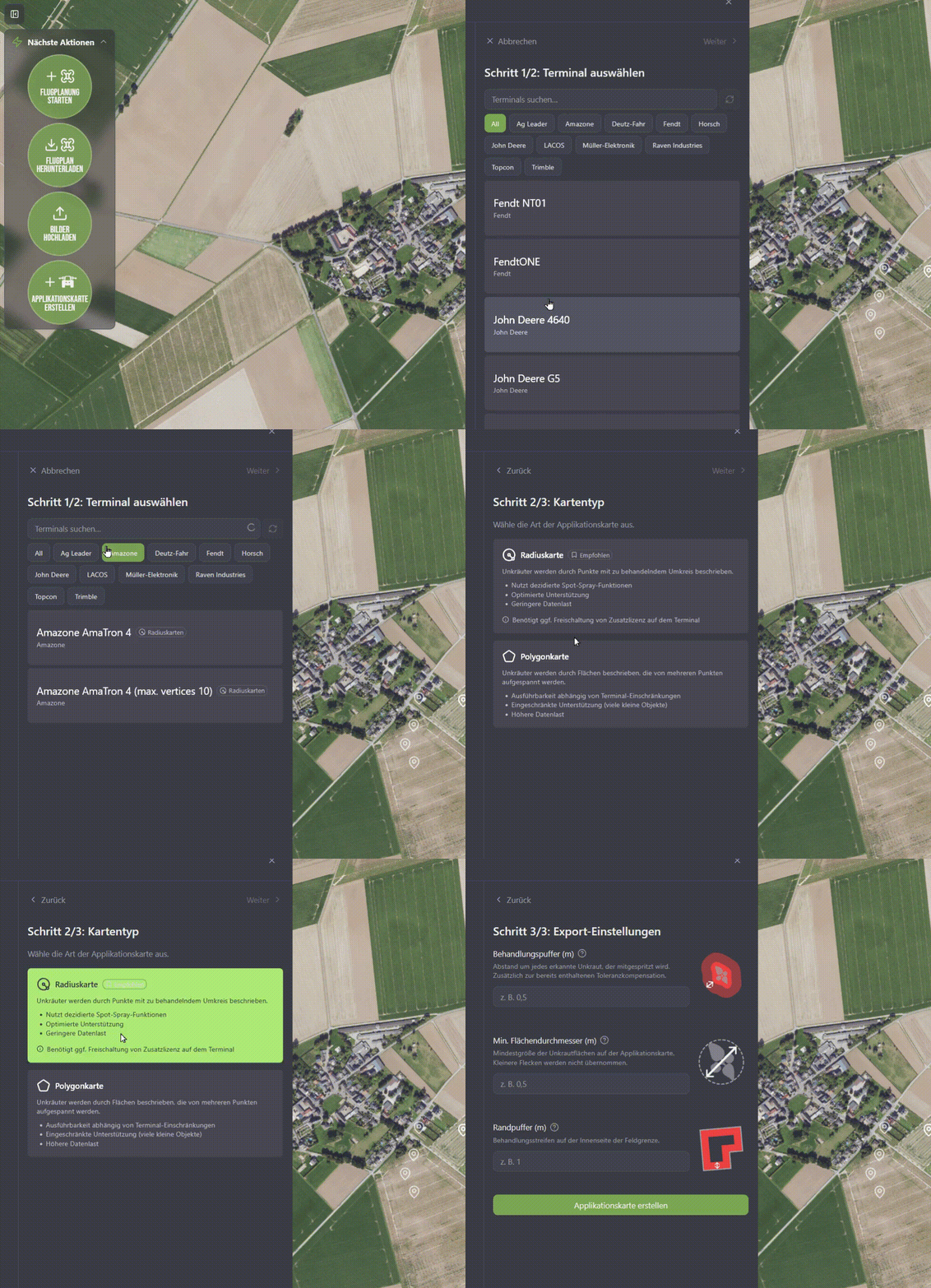
After reviewing the weed analysis, you can generate a shapefile by selecting "Create Application Map."
First, select your terminal.
If a spot-spray function is available, you can choose between the following options:
Polygon Application
Spot Spray
Set Parameters
-
Safety Buffer
Distance (in m) around detected weeds → expands the treatment area -
Minimum Zone Diameter
Smallest permissible treatment zone → smaller areas are ignored
Edge Buffer -
Edge Buffer
Treatment strip along the field boundary → useful for edge areas
Once all parameters have been set, the application map is automatically generated and can be downloaded directly.
Analysis of Results
Analysis of Results
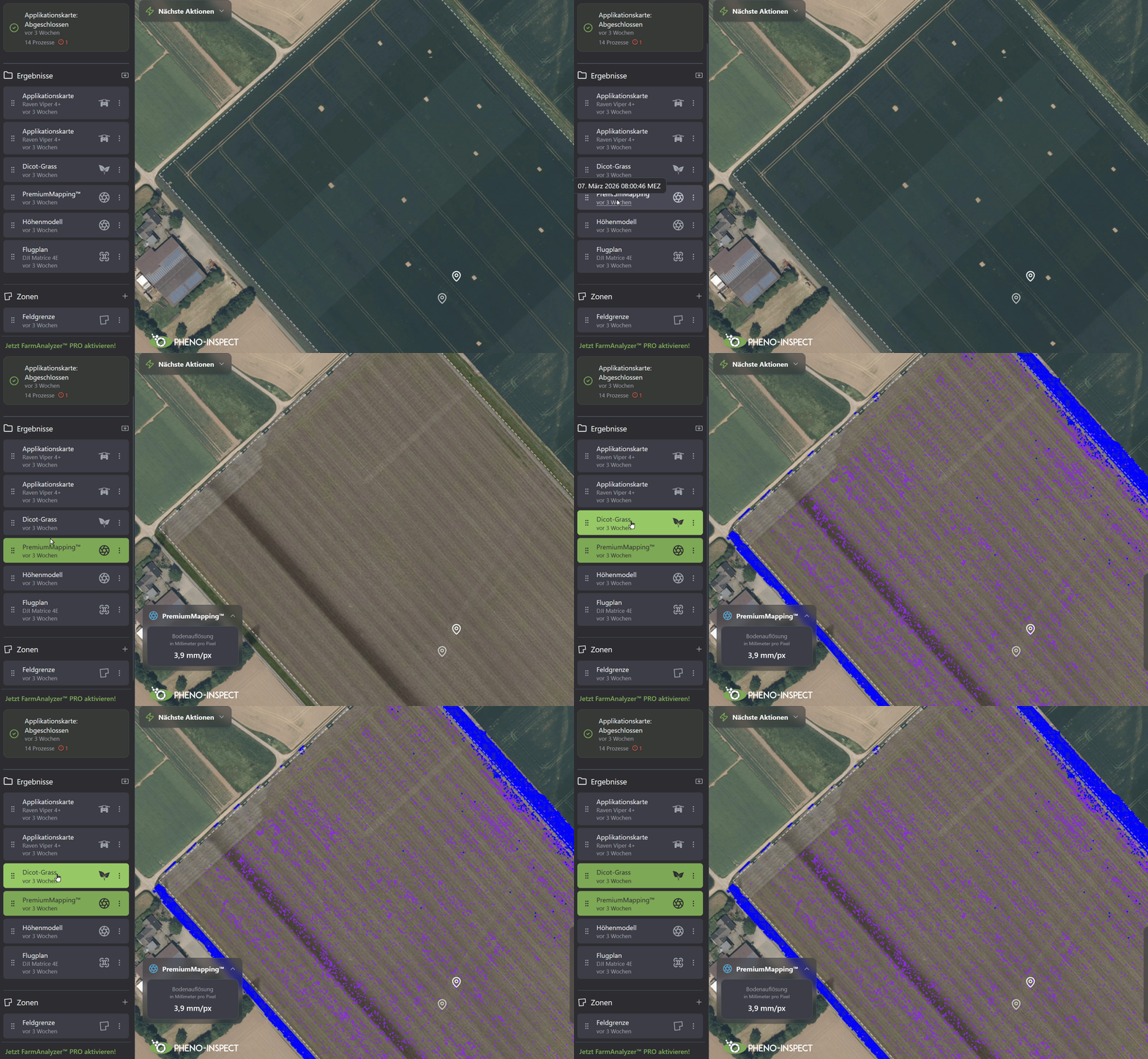
After mapping, you can view the calculated results directly within the interface.
-
Select your measurement on the left.
-
Activate "PremiumMapping™" or "EcoMapping™".
-
Open the "Vegetation" layer to view detected weeds and crops.
Understanding the Views
On the right side, you can switch between two views:
-
Classification
Displays the detected plants (crops & weeds).
-
Application
Displays the areas requiring treatment.
For each measurement, you can choose between two options—depending on your objectives and desired precision:
-
EcoMapping™
Fast and cost-efficient for daily use.
-
Significantly shorter flight times and up to 90% less data volume.
-
Rapid results with high accuracy.
-
Ideal for large areas and quick decision-making.
-
PremiumMapping™
Maximum precision for demanding applications.
-
Centimeter-accurate positioning of individual plants.
-
The highest level of detail for centimeter-precise applications.
-
Ideal for high weed pressure or sensitive crops.
Download Application Map
Once the application map has been created, you can view it in the user interface.
The areas to be treated are highlighted in blue.
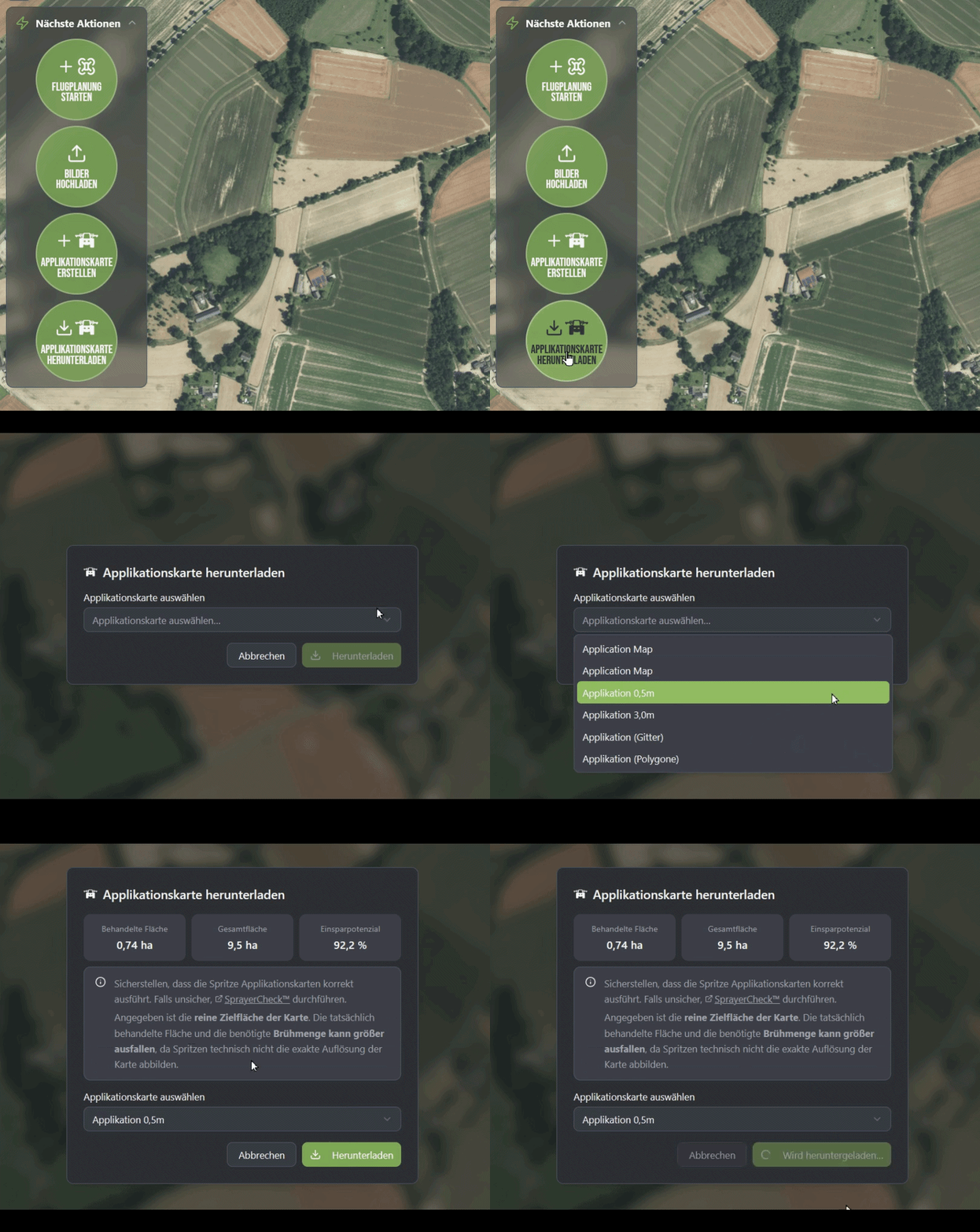
Click "Download Application Map" and select the desired file.
Before downloading, the following key figures are displayed:
-
Treated Area
Estimated area targeted for treatment -
Total Area
Total area of the field -
Savings Potential
Potential reduction in inputs through precision application
Click "Download" to export the application map and transfer it to your terminal.
Frequently asked questions
.avif)