
Support
Step 1: Capture
Click on any step or subsection to see support materials and media.

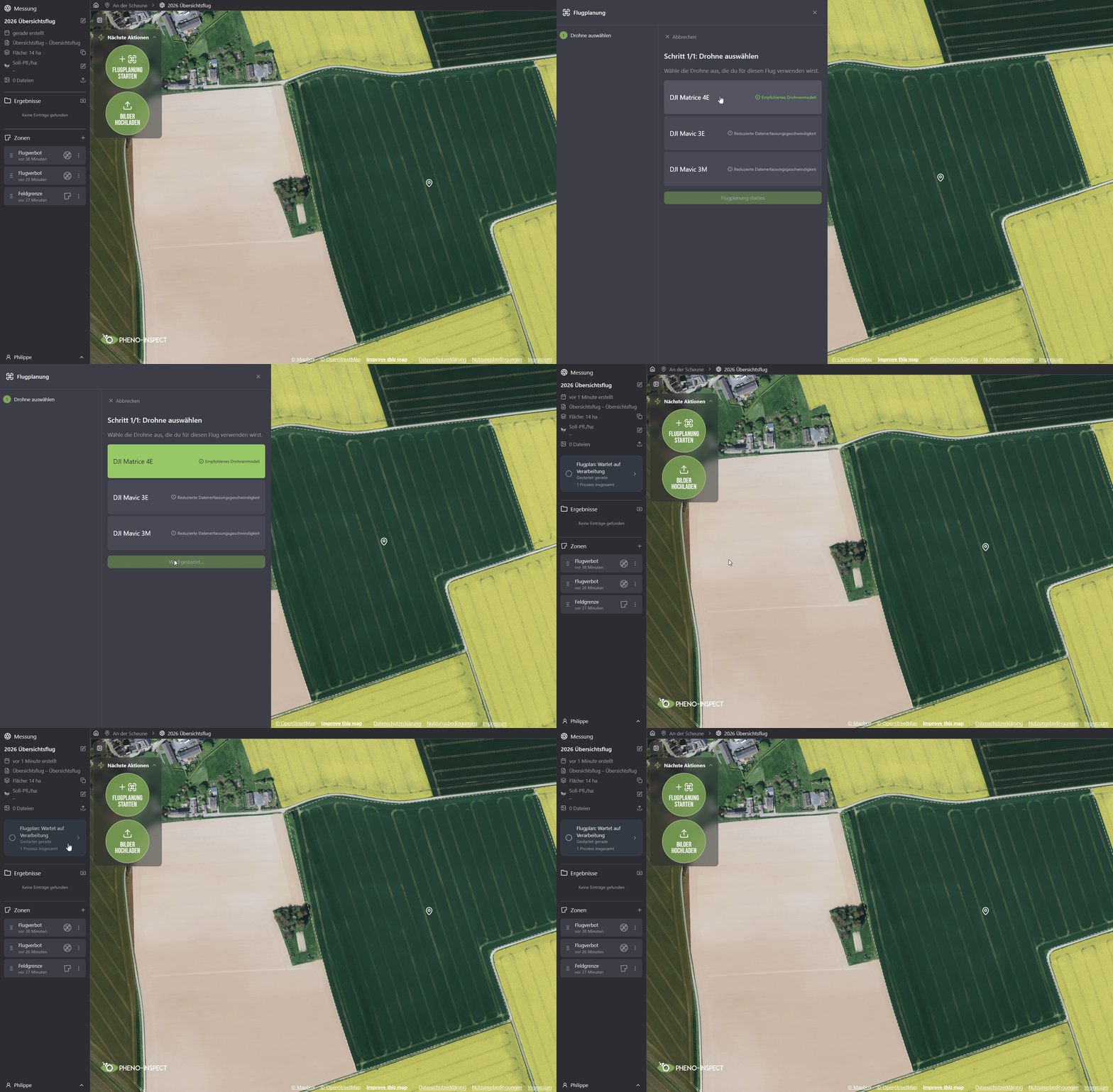
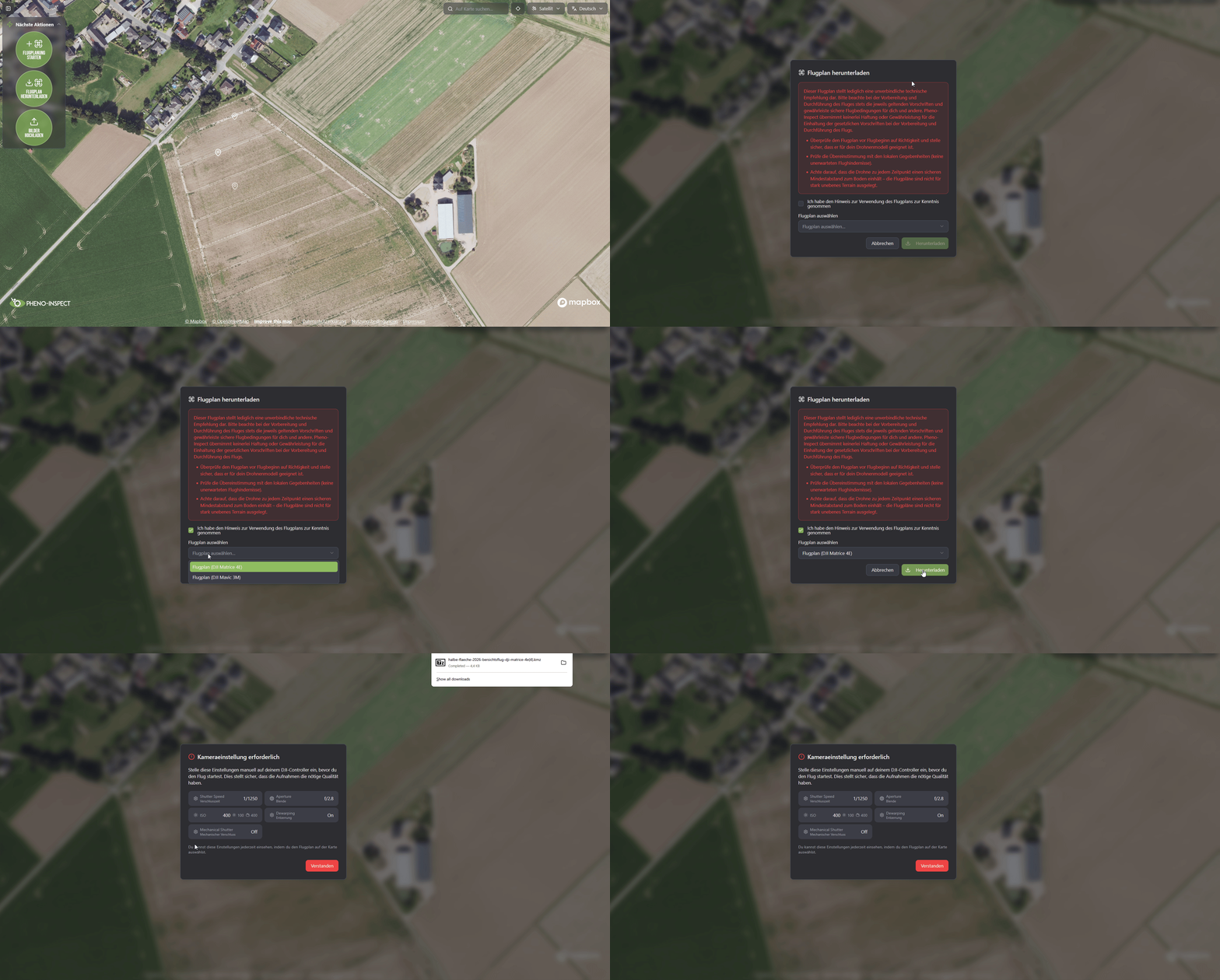
Alternatively: Downloading Directly via the Controller
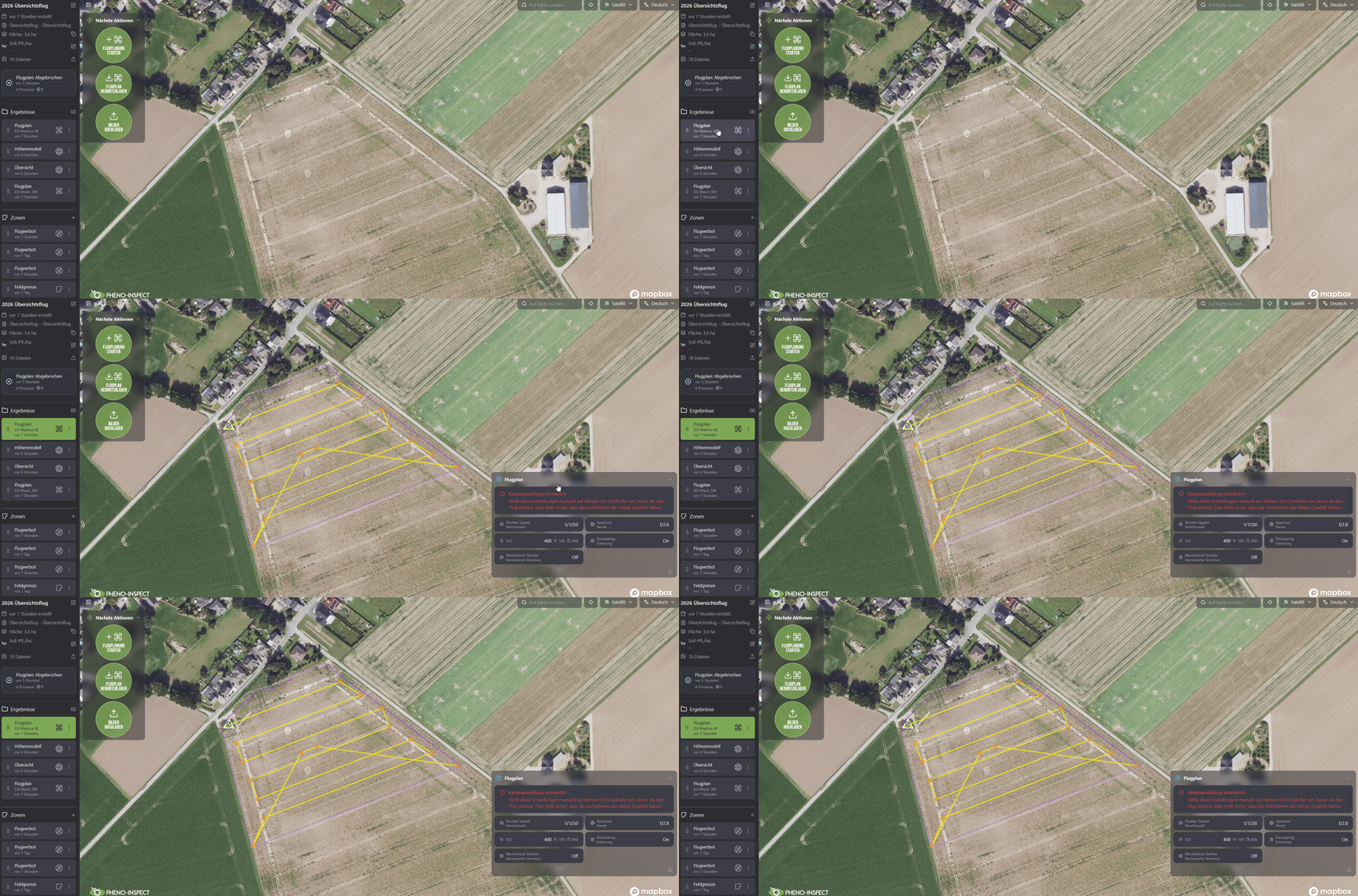
You can also download the flight plan directly via the drone controller:
-
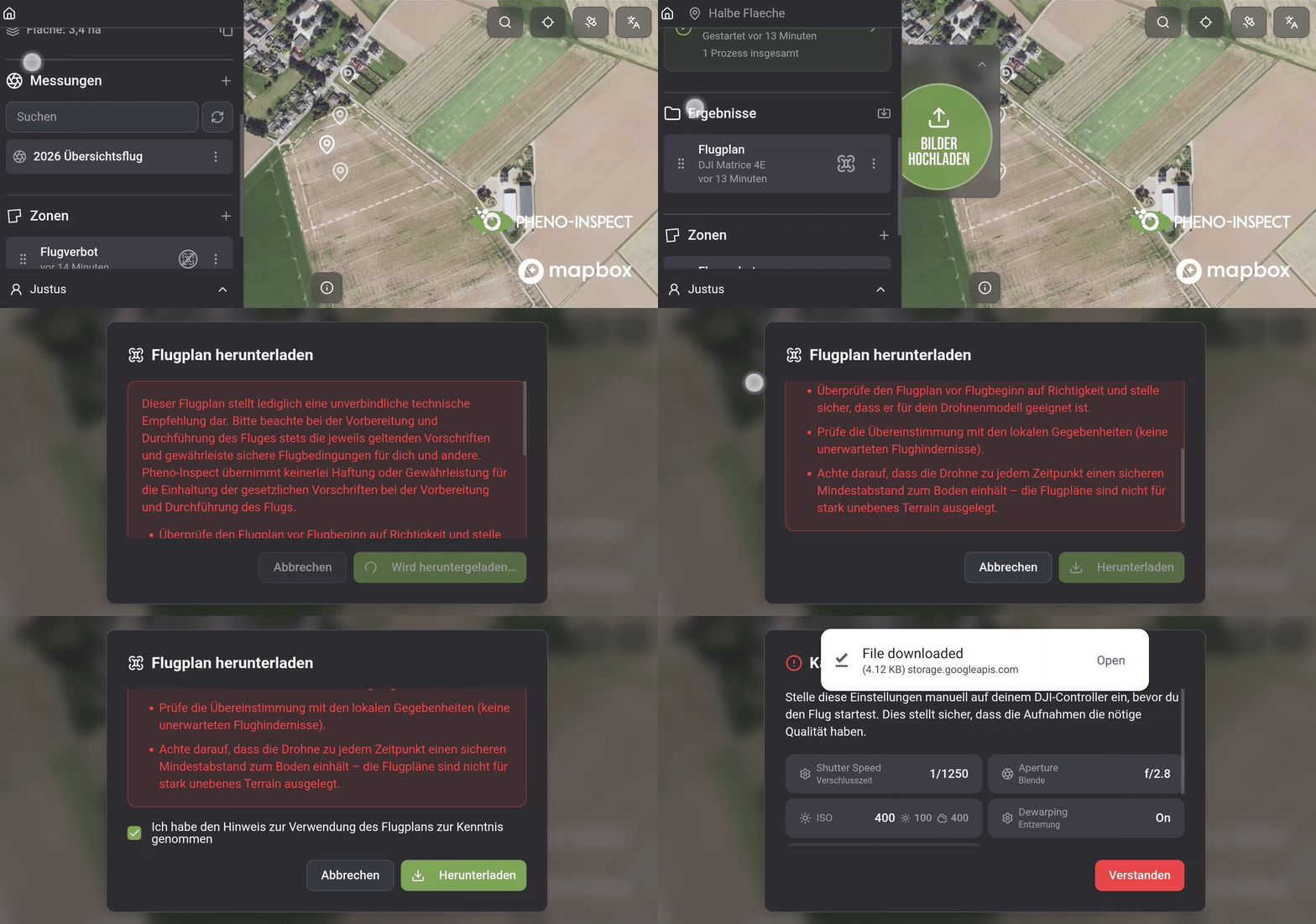
Log in to FarmAnalyzer via the controller’s browser.
-
Open the relevant measurement
-
Click on the three dots for advanced settings
-
Select "Download"
-
Confirm the safety instructions
The camera settings will be displayed automatically.
Transferring the Flight Plan
If you have downloaded the flight plan to your desktop, transfer it to your drone or DJI Remote Controller as follows:
-
Connect the controller to your computer using a USB-C cable.
-
Open the controller in your file manager.
-
Drag the downloaded mission file to the "Download" folder.
The mission will then be available on the controller.
Note: If you downloaded the flight plan directly to the controller, this step is not necessary.

Camera Parameters
Once you are in the field and the drone and controller are connected, you can start your flight mission.
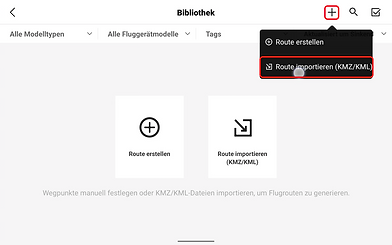
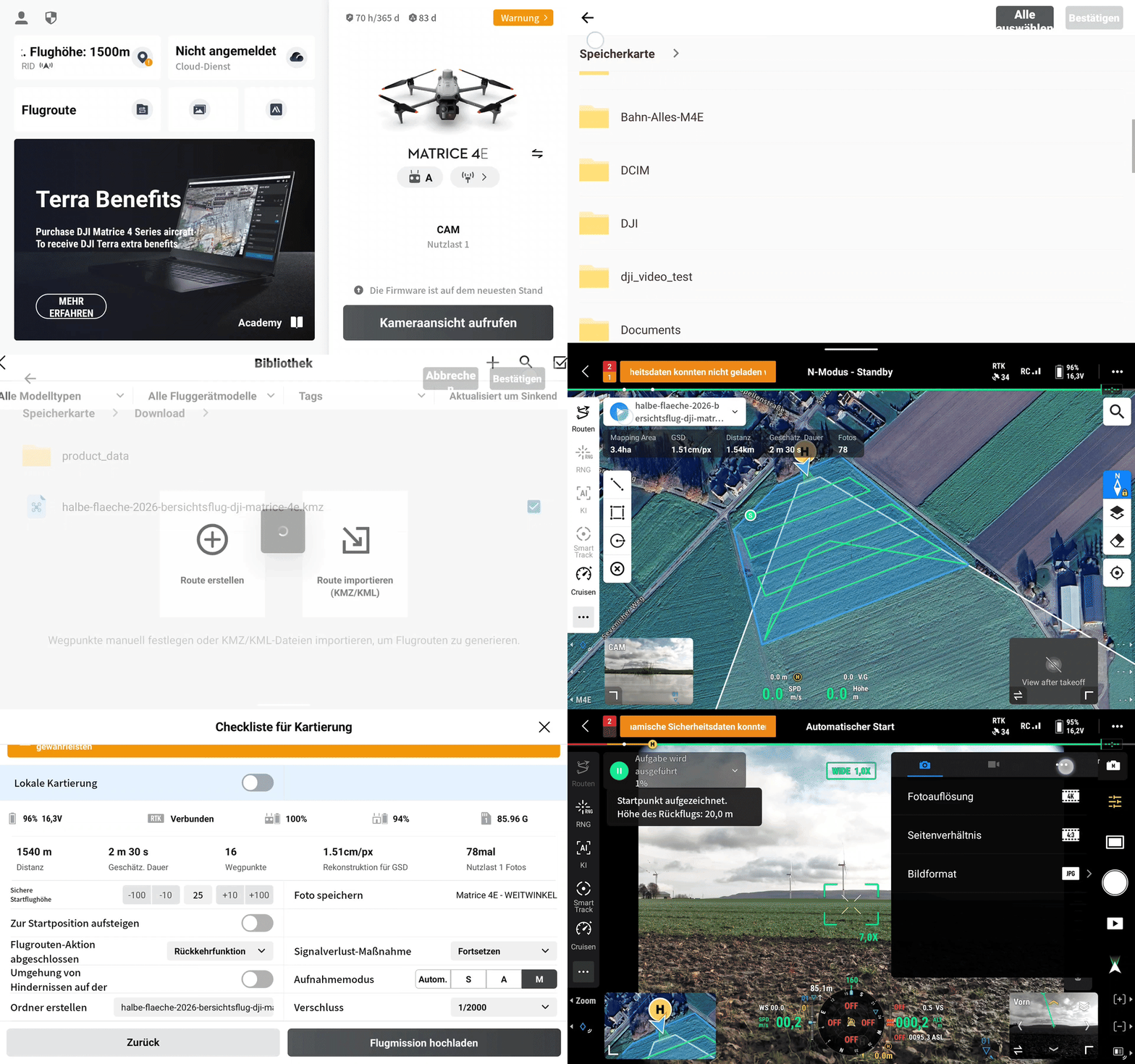
Importing the Flight Route
-
Open the "Flight Route" menu on the controller.
-
Tap the "+" icon.
-
Select "Import Route."
-
Select the saved flight mission.
-
Tap "Confirm."
The flight route will now be displayed on the controller.
Start Mission
-
Tap the newly imported flight mission
-
Tap the blue start icon
-
Select "Next"
-
Tap "Upload Flight Mission"
-
Start the mission using the blue “Play” button.
-
Disable “Obstacle Avoidance” in the pre-flight check to reach maximum mission speed.
Note: Camera parameters are not set before takeoff; they are set only after the drone has lifted off.
Check Camera Settings
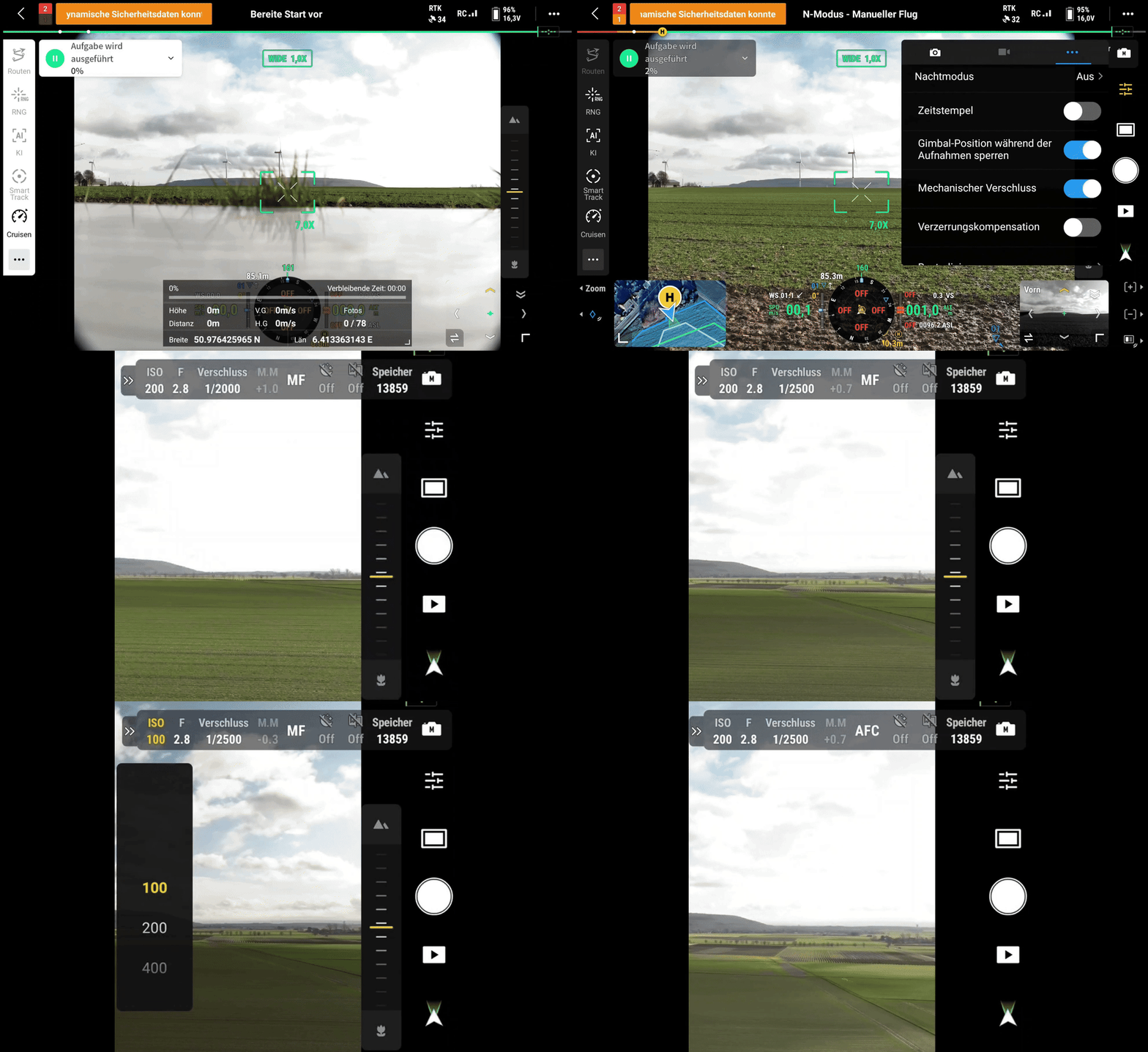
For reliable analysis, the camera settings must match the specifications of the respective flight plan.
ISO 400 is the standard. This ensures sufficiently bright images, even during fast flights.
In very bright sunlight, you may reduce the ISO to 200 or 100 if images are overexposed.
If images are too dark at ISO 400, the lighting conditions are unsuitable. In this case, do not fly.
Adjusting Advanced Camera Settings
After takeoff, adjust the camera settings directly in the controller.
Important: Do not set the parameters during the pre-flight check. DJI may automatically overwrite them.
-
Tap the settings icon on the right
-
Open the advanced settings via the three dots
-
Disable the mechanical shutter
-
Enable distortion compensation
-
Set the focus mode to “AFC.”
Make sure these settings are correctly configured before starting the mission.
Frequently asked questions
.avif)