
Support
Step 4: Act
Click on any step or subsection to see support materials and media.

Import Application Map
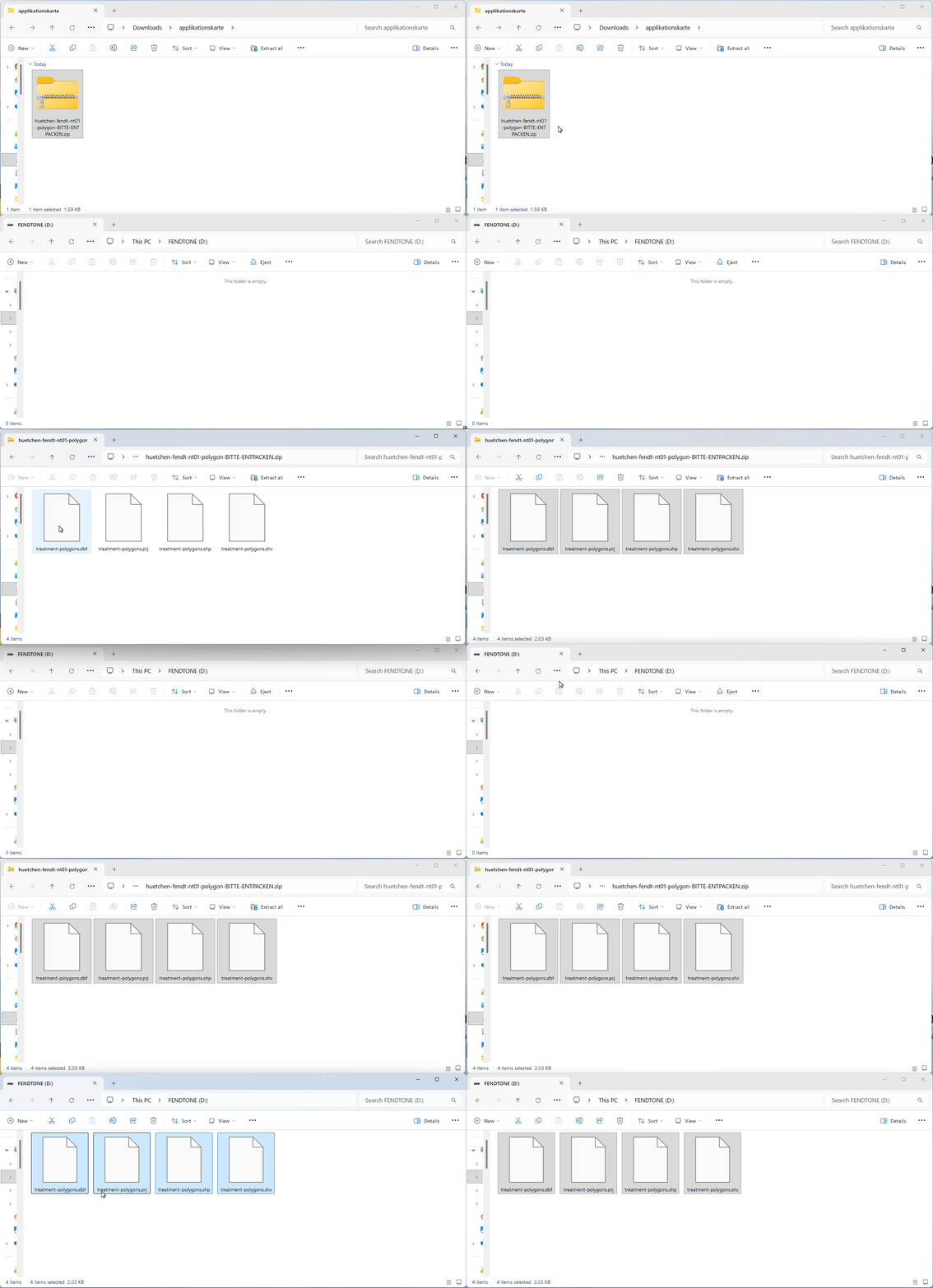
After downloading the application map, unzip the ZIP file and transfer the contained files to your USB stick. If possible, use the USB stick recommended by the terminal manufacturer to avoid compatibility issues.
Loading the application map onto the terminal:
-
Unzip the entire contents of the downloaded ZIP file.
-
Transfer the files to the USB stick.
-
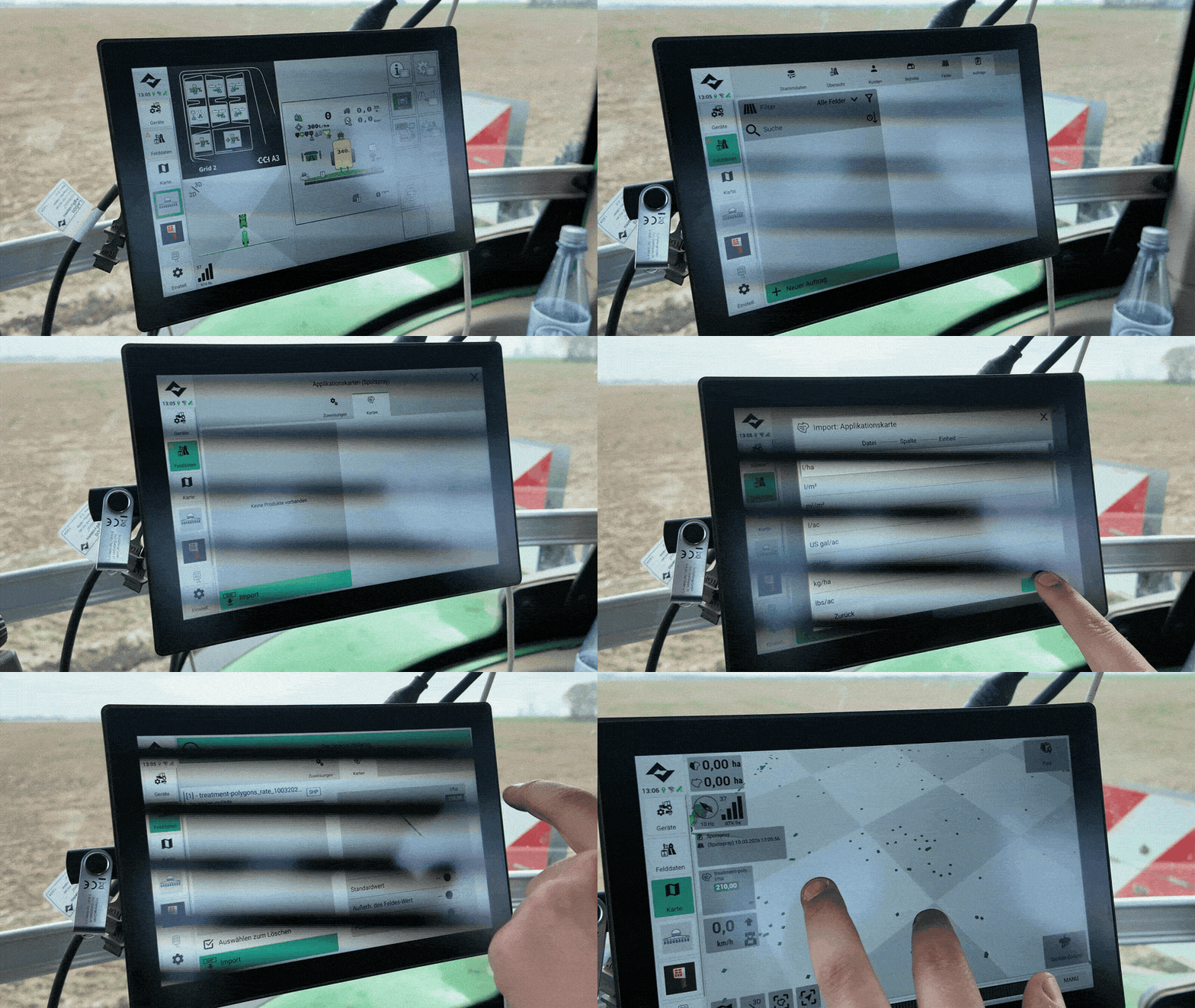
Insert the USB stick into the terminal.
-
Load the application map onto the terminal.
Note: If you encounter any issues during the import process, please contact your terminal manufacturer directly.
Terminal and Application Settings
Start the job on your terminal and configure the following settings:
-
Enable Section Control
-
Set Overlap to 100%
-
Disable automatic boom offset (if available and possible)
-
Drive over the area to be treated
Note: SprayerCheck™ Recommended
To ensure that your system is configured correctly, we recommend performing a SprayerCheck™ beforehand.
This allows you to verify the entire workflow—from the application map to the actual application—under real-world conditions (without crop protection products).
Additionally, it enables you to:
Determine the optimal driving speed
Validate the appropriate export parameters
Further information: SprayerCheck™ (see Help Page "Getting Started")
Frequently asked questions
.avif)